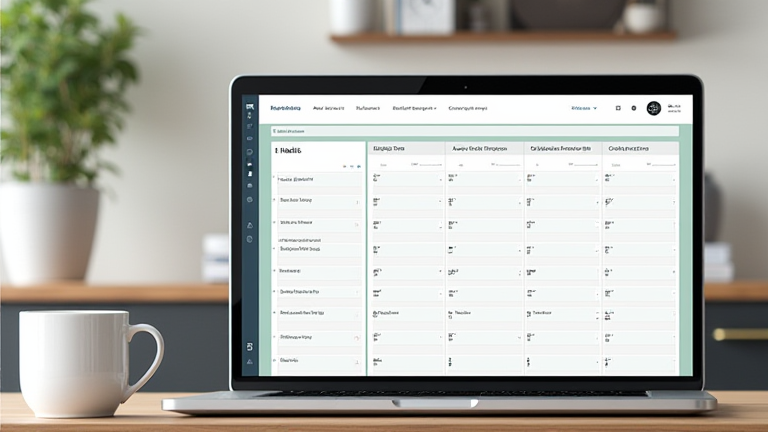
TL;DR: Build a Notion habit tracker by creating a database with a checkbox property for each habit and a date property, then use a calendar or table view to log daily check-offs. Use formulas to calculate streaks and a dashboard to visualize weekly progress.
Step 1: Create the Database
Open a new Notion page and type /database. Choose Table (inline). Rename the first property (the title) to Date and set its type to Date. This will be your main log entry for each day.
If you want to dig deeper, check out our guide on Sleep-Tech Wearables: Adaptive Light Therapy Prescribed.
Step 2: Add Habit Properties
Click + Add a property for each habit (e.g., “Exercise”, “Read”, “Meditate”). Set each property type to Checkbox. You’ll have one column per habit, and each row will represent a single day. Check the box when you complete the habit that day.
Step 3: Set Up a Quick-Add View
Create a new view (click the + next to the table tab) and choose Calendar. This lets you see your habits by date. To add a new day, click the + on the calendar date. Notion will auto-create a new row with that date. Tip: Use the Template button in the calendar view to pre-fill all checkboxes as “unchecked” for faster daily logging.
Step 4: Build a Streak Formula
Add a Formula property called Streak. For a simple 7-day streak, use: if(prop("Exercise"), 1, 0) — but for a real rolling streak, you need a relation to a “Days” database. Easier: create a Rollup from a second database. For beginners, just track Completion % with: prop("Exercise") ? 100 : 0.
Step 5: Create a Weekly Dashboard
Above your database, add a Linked view of database in a Board layout, grouped by “Date” (or by “Done” checkbox). Then add a Summary property using a rollup to count checkboxes. Tip: Use a Gallery view filtered to “this week” to see a clean visual of your progress without clutter.
Step 6: Automate with Templates & Reminders
In your calendar view, click Template and create a template called “Daily Log”. Add a Reminder property (type: Date with reminder) set to 7:00 AM. Duplicate this template for each day. Now, every morning you’ll get a notification to fill in your habits.
Step 7: Review & Tweak
After 2 weeks, filter your table by Done = true to see which habits you’re skipping. Use a Sort by date descending so today is on top. Tip: Add a Status property (e.g., “Missed”, “Partial”) to color-code days, but keep it simple as you start.
FAQ
Q: Can I use this tracker on mobile?
A: Yes, the Notion mobile app syncs automatically. Tap the checkbox directly in the table or calendar view to log habits on the go.
Q: How do I backfill past days?
A: Click any empty row, set the Date property to a past date, and check the boxes. Or use the calendar view to click on a past date
Leave a Reply